
Notability’s built-in Convert to Text is genuinely useful for neat notes you wrote in the app with an Apple Pencil. Where it stops is everything else: cursive, a photo of paper, a scanned PDF, or a backlog of notebooks to clear. For those, the better answer is to let Handwriting OCR do it, and the quickest way to hand it over is email, straight from Notability, which is something the built-in tools and general-purpose OCR don’t offer.
This guide covers the built-in method briefly and honestly, then the part that is actually ours: what to do when Notability isn’t good enough.
The built-in way, briefly
Write with Apple Pencil or finger, switch to the selection tool (the dotted lasso, not the pen), loop the handwriting, then tap the selection and choose Convert to Text. Notability shows you the recognised text so you can fix any slips before copying it out. It is typically around 90% accurate on neat printing and lower on cursive, often 70% to 85%, and it only works on ink you drew inside Notability. Notability also indexes your handwriting in the background, so you can search your notes for a written word without converting anything.
For everyday notes you took on the iPad, that is all you need.
When Notability’s built-in conversion isn’t good enough
Four common situations defeat it:
- Cursive or messy writing. Accuracy drops fast, and you spend longer fixing the output than you saved.
- Photos, scans and imported PDFs. Convert to Text only reads ink you drew in the app, so a photographed or scanned page is invisible to it.
- A backlog of pages. It is one manual selection at a time; clearing a whole notebook block by block is slow enough that most people give up.
- Historical or faded documents. Old letters, archival pages and faded ink are outside what a note app was built to read.
For every one of these, hand the document to Handwriting OCR.
Let Handwriting OCR do it: email your notes straight over
This is the part you won’t get from the built-in tools or general-purpose OCR. Instead of converting note by note, or even uploading files, you email your notes to your own private Handwriting OCR address and the text comes back in your dashboard.
- In Handwriting OCR, open Settings → Email to get your private inbox address (like
smokey-amber-falcon@in.handwritingocr.com) and allow-list the account you send from. - In Notability, tap Share → Export → PDF and email it to that address.
- The pages are transcribed automatically and appear in your dashboard, usually within 15 to 20 seconds.
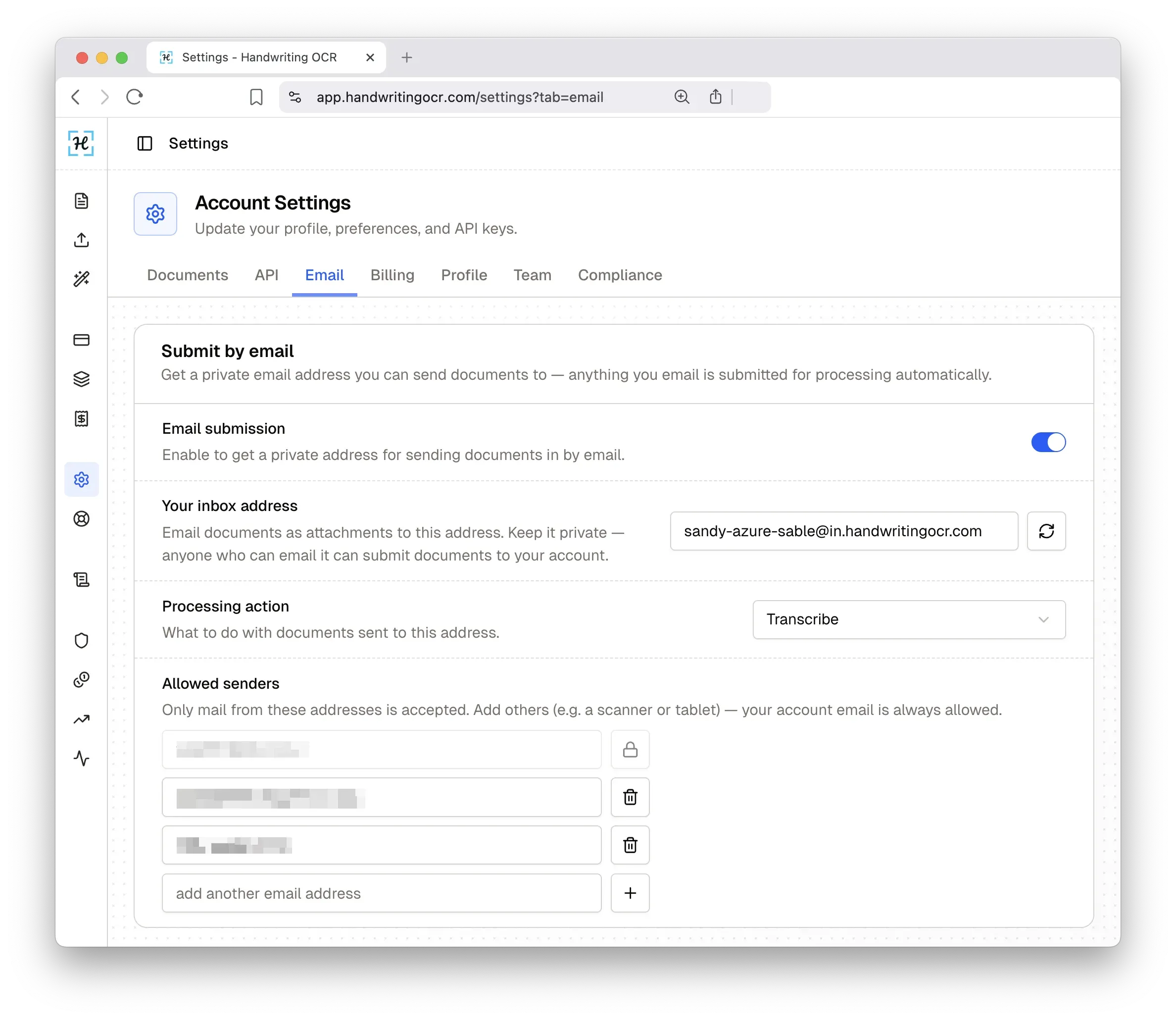
Export a whole notebook as one PDF and email it once: that clears a backlog in a single step, with no per-paragraph selecting and no upload. The text lands in your dashboard, not as an email reply, ready to export as Word, plain text or JSON.
This is also where the accuracy gap shows. Every day our recognition models read thousands of pages of real handwriting, so we see exactly where in-app tools fall down and where they hold up. Handwriting OCR reads connected cursive, faded ink, even historical scripts that defeat Apple Live Text, Adobe Acrobat and Google Drive OCR, handles 300+ languages, processes a whole batch in one pass, and never trains on your documents.
Prefer to go direct instead of emailing? Open Handwriting OCR (free trial credits, no card required), choose Transcribe, and drop in a JPG, PNG, HEIC or PDF.
Notability built-in vs Handwriting OCR
| Notability Convert to Text | Handwriting OCR | |
|---|---|---|
| Ink you wrote in the app | Yes | Yes (after export) |
| Photos or scanned PDFs | No | Yes |
| Cursive and faded ink | Weak | Excellent on legible script |
| A whole notebook at once | One selection at a time | One PDF, one pass |
| Email it straight over | No | Yes |
| Languages | Common handwriting languages | 300+ |
| Formats out | Copy text | Word, plain text, JSON |
Notability is the better place to take notes. Handwriting OCR is the better place to convert the ones its built-in tool can’t.
Bottom line
Use Notability’s Convert to Text for neat notes you wrote on the iPad. The moment it isn’t good enough, cursive, a photo, a PDF, or a stack of pages, hand it to Handwriting OCR, and the fastest way to do that is to email it straight from Notability.
Try Handwriting OCR free on your hardest page, no card required. For a large archive, send a sample and we’ll tell you what to expect first.
For the adjacent apps, see GoodNotes, Apple Notes, iPad more broadly, and the main handwriting-to-text guide.
Frequently asked questions
Does Notability convert handwriting to text?
Yes. Write with Apple Pencil or your finger, switch to the selection tool, draw around the handwriting, then tap the selection and choose Convert to Text. Notability shows the recognised text so you can review it before copying it out. It works on ink you wrote inside Notability, not on imported photos or PDFs.
How accurate is Notability's handwriting recognition?
On neat printing written in the app it is typically strong, in the region of 90% word accuracy. On cursive it drops noticeably, often to 70% to 85% depending on how connected the writing is. For a photo or scan of paper it cannot convert anything at all, and Handwriting OCR is the route.
Can Notability convert handwriting from a photo or scanned PDF?
No. Convert to Text only works on ink you drew inside Notability. Photos, imported images and PDFs are static content it cannot read. Export the page as a PDF and send it to Handwriting OCR, which reads photographed and scanned handwriting that Notability cannot.
Can I convert a whole stack of notebooks at once?
Not in Notability, which converts one manual selection at a time. Export the notebook as a single PDF and email it to your private Handwriting OCR inbox; every page is transcribed automatically and lands in your dashboard, with no per-paragraph selecting and no upload step.
Is my handwriting private when I use Handwriting OCR?
Documents auto-delete after 7 days by default, or on demand from the dashboard or API. They are never used to train models, and they are encrypted in transit.