
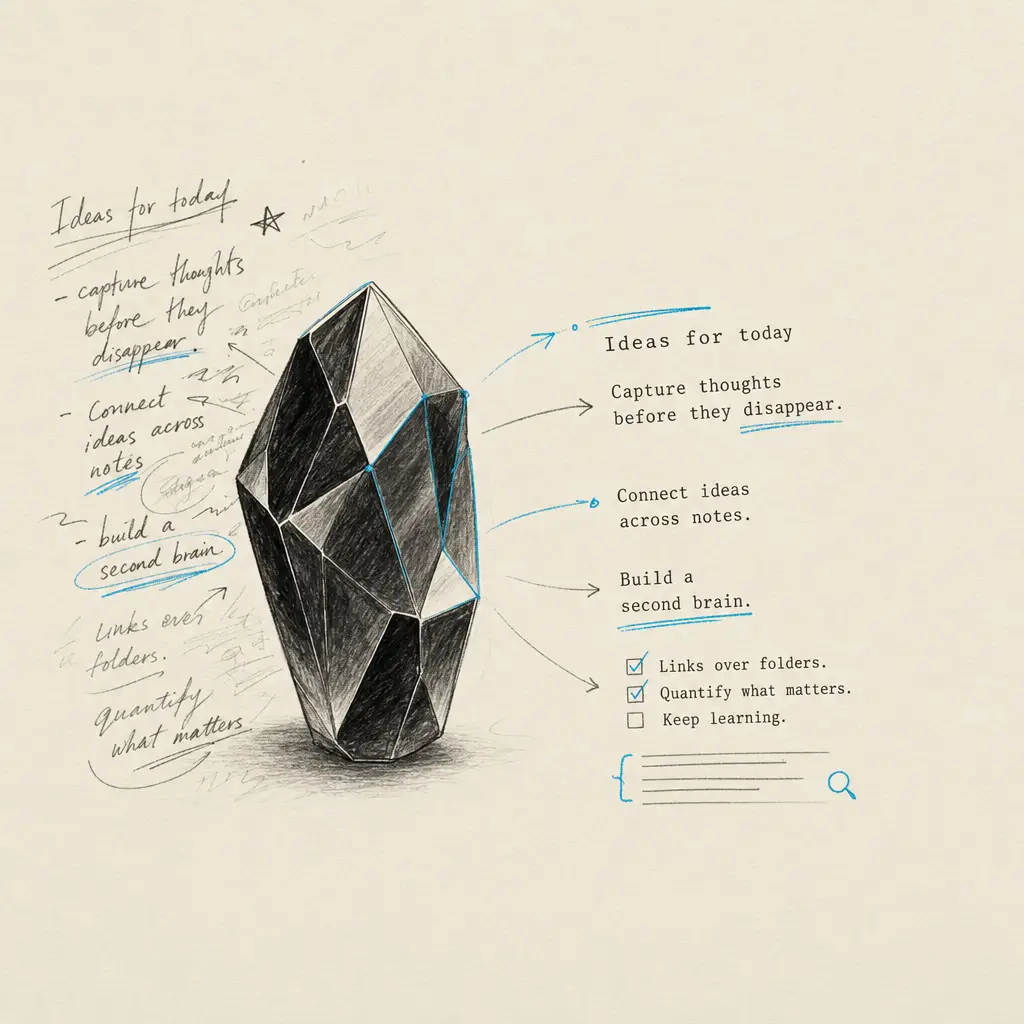
Obsidian handles typed notes beautifully, but a photo of a handwritten page just sits in your vault as an image you cannot search or edit. The official Handwriting OCR plugin fixes that: right-click an image or PDF, and it comes back as clean, editable text in your note. It reads cursive and messy handwriting that general OCR garbles, supports multi-page PDFs, and works from both the editor and the file explorer. Install it from Obsidian’s community plugins, add your API key, and you are converting in under a minute.
Why handwritten notes get stuck in Obsidian
If you keep a second brain in Obsidian, you have probably hit this wall. Your typed notes are searchable, linkable, and future-proof. Your handwritten notes, the journals, the notebooks, the whiteboard photos, are trapped as images. You cannot search them, link to a line inside them, or fold them into your notes.
The usual workarounds fall short. Built-in phone OCR and general tools like Google Drive were built for printed text, so they misread real handwriting, especially anything cursive or hurried. And copying results back into Obsidian by hand defeats the point. (For the full range of approaches, see our guide to handwritten notes in Obsidian.)
What the Handwriting OCR plugin for Obsidian does
We publish an official plugin in the Obsidian community directory that brings Handwriting OCR straight into your vault. Point it at an image or PDF, and it returns editable text you can drop into a note. No exporting, no switching apps.
It is built for handwriting specifically, so it is materially more accurate on handwritten pages than generic OCR, while still doing a great job on printed text. It handles multi-page PDFs, reads over 300 languages, and processes files up to 20MB.
How to install the Handwriting OCR plugin in Obsidian
- In Obsidian, open Settings, Community plugins, Browse.
- Search for Handwriting OCR and click Install, then Enable.
- Get your API key from your Handwriting OCR settings. If you do not have an account yet, create one first; new accounts include free trial credits.
- Paste the key into the plugin settings and click Validate. You will see your remaining credit balance confirmed.
How to convert handwriting to text in Obsidian

From the editor. Insert an image or PDF into your note (for example ![[journal-page.pdf]]), select the link, then either open the command palette and run Handwriting OCR: Replace selection or Append to selection, or right-click and choose Handwriting OCR and an action. The image link is replaced or followed by the transcribed text.
From the file explorer. Right-click any supported image or PDF in your vault and choose Handwriting OCR, then Extract text to clipboard or Extract to new note. The second option is the fast way to turn a scanned notebook into a fresh, searchable note.
That is the whole loop: photograph or scan a page into your vault, right-click, and it becomes text you can search, link, and edit like anything else in Obsidian.
What the plugin supports: formats, cost, and privacy
- Formats: PDF, JPG, PNG, GIF, BMP, TIFF, HEIC, WEBP, up to 20MB per file.
- Multi-page PDFs: supported, billed at one credit per page.
- Cost: the plugin is free; it runs on your Handwriting OCR account, which is a paid service at one credit per page. New accounts get free trial credits that use the same AI as paid plans, so you can test it on your worst handwriting before committing.
- Privacy: documents are encrypted, auto-deleted after 7 days by default, and never used to train models.
The plugin is open source under the MIT license. You can view its listing in the Obsidian community directory or browse the code and report issues on GitHub.
Who the Obsidian handwriting plugin is for
Anyone digitizing analog input into a digital vault: journalers archiving old notebooks, students converting lecture notes, researchers working through handwritten field notes, and anyone who thinks best on paper but lives in Obsidian. If you have been meaning to get years of handwritten pages into your second brain, this is the bridge.
For handwriting outside Obsidian, the same engine powers our web app and handwriting-to-text tools, and you can even email a PDF straight in to get the text back in your dashboard.
Ready to get your notebooks into your vault? Create a free account, grab your API key, and install the plugin from Obsidian’s community directory.
Frequently asked questions
Is there an Obsidian plugin to convert handwriting to text?
Yes. The official Handwriting OCR plugin is in the Obsidian community plugin directory. It sends an image or PDF from your vault to Handwriting OCR and returns editable text you can drop into a note, all without leaving Obsidian.
How accurate is handwriting recognition in Obsidian?
General OCR tools were built for printed text and struggle with real handwriting. Handwriting OCR is built specifically for handwriting, including cursive and messy or faded notes, so it is materially more accurate on handwritten pages than generic OCR while still handling printed text well.
Does the Obsidian handwriting plugin cost anything?
The plugin is free to install. It uses your Handwriting OCR account, which is a paid service billed at one credit per page. New accounts come with free trial credits that use the same AI as paid plans, so you can test it on your own notes before deciding.
What file types can the plugin convert?
PDFs and common image formats: JPG, PNG, GIF, BMP, TIFF, HEIC, and WEBP, up to 20MB per file. Multi-page PDFs are supported and consume one credit per page.