
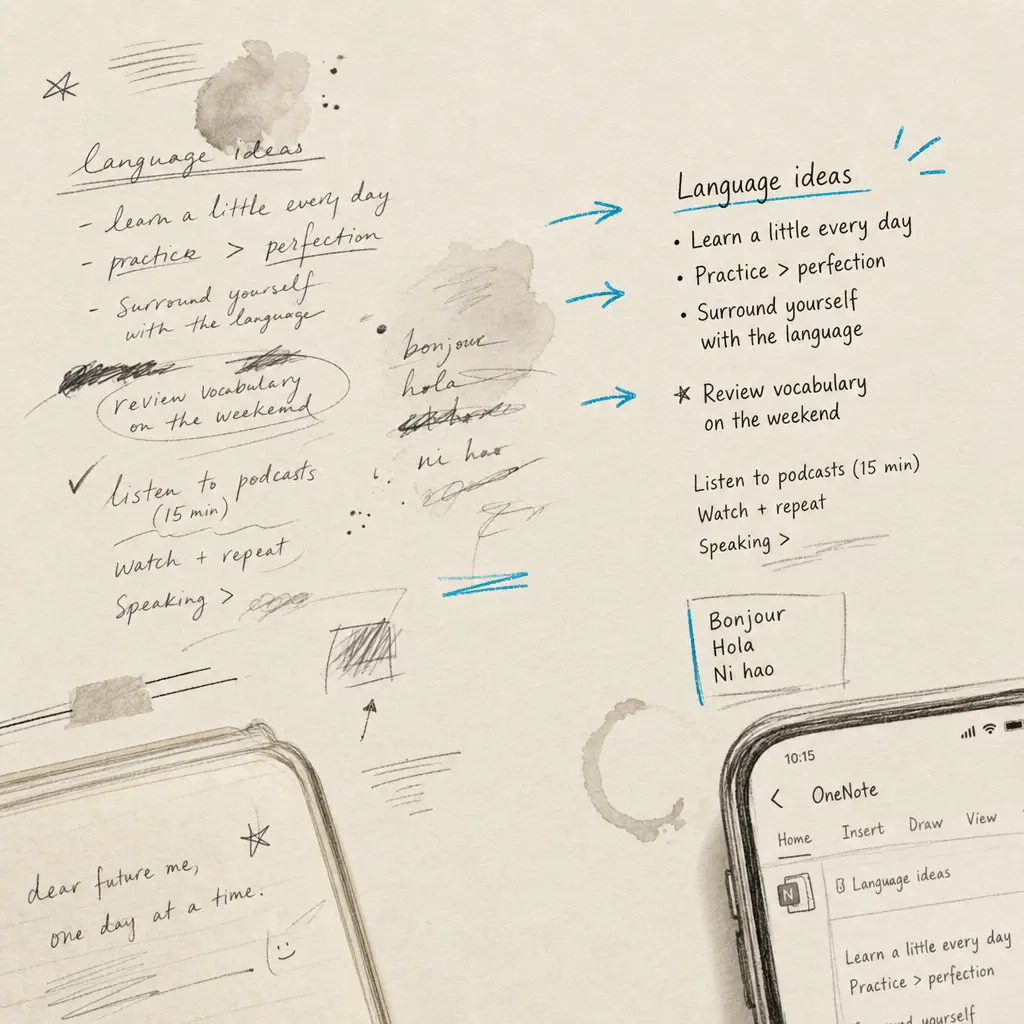
Microsoft OneNote can turn handwriting into editable text through its Ink to Text feature, and it is genuinely useful for tidy notes. But there is an important catch that most guides skip: Ink to Text only works on ink you drew inside OneNote. Point your camera at a handwritten letter, a page of meeting notes, or an old journal, and OneNote will not reliably read it.
This guide covers the exact steps on Android, iPad, and Windows, then the part that matters if you have real handwriting to deal with: where OneNote’s recognition holds up, where it doesn’t, and the faster route we see people take every day.
Quick answer
- Ink to Text converts live ink, not photos. Select handwriting with Lasso Select on the Draw tab, then tap Ink to Text.
- It does well on clear, block-printed handwriting, one page at a time.
- It struggles with cursive, mixed writing, hurried notes, faded ink, and photos or scans of paper documents.
- For those, email your PDF straight to Handwriting OCR and the transcription lands in your dashboard in about 15 to 20 seconds.
Convert handwriting to text in OneNote, step by step
The Ink to Text tool is the same across platforms. Only the pen input differs.
- Open the page in OneNote that contains your handwritten ink.
- Go to the Draw tab in the ribbon or toolbar.
- Choose the Lasso Select tool (the dotted circle icon) and draw a loop around the handwriting you want to convert.
- With the ink selected, tap Ink to Text.
- OneNote replaces the ink with editable typed text. Review it and fix any misreads.
Platform notes
- Android (phone or tablet): the Draw tab and Lasso Select sit in the toolbar. Finger input works, but a stylus gives cleaner strokes and better recognition.
- iPad: write with an Apple Pencil for the best results, then use Lasso Select and Ink to Text exactly as above. Palm rejection lets you rest your hand while writing.
- Windows / Surface: a Surface Pen or any active pen works well, and the desktop app is the most reliable place to convert longer stretches of ink.
The one thing none of these do is read a photo of handwriting on paper. Inserting an image into OneNote lets you store it and search some printed text, but it will not convert handwritten ink from a picture into editable text.
Where OneNote does well, and where it doesn’t
We process thousands of real handwritten documents every week, so we see the full range of what these built-in tools can and can’t do. Here is the honest picture.
OneNote does well when:
- You wrote the notes inside OneNote with a stylus.
- Your handwriting is neat and printed-style, with clear letter spacing.
- You are converting one page, or one selection, at a time.
OneNote falls short when:
- The handwriting is cursive, joined, or a mix of print and cursive.
- The notes are hurried, cramped, or faded.
- You have a photo, scan, or PDF of handwriting on paper rather than live ink.
- You have many pages and don’t want to lasso and convert each one by hand.
That last group is exactly where people come to us. If you have more than a clean page or two, and the accuracy just isn’t good enough, a specialist handwriting OCR tool will save you far more time than it costs.
The faster route: email your PDF to Handwriting OCR
Handwriting OCR is built specifically for real-world handwriting, including cursive, mixed styles, faded ink, and multi-page documents. It is materially more accurate on handwriting than general-purpose tools, and it reads over 300 languages.
The part people like most is that you don’t have to change how you work. Once email submission is switched on in your settings, you get a private inbox address of your own. From there:
- Get your handwriting into a PDF. Export or print your OneNote pages to PDF, or scan the paper document with your phone.
- Email the PDF to your private Handwriting OCR inbox address as an attachment.
- Open your dashboard. The finished transcription appears there, tagged with an Email badge, usually within 15 to 20 seconds of the email arriving.
- Export the result to Word (DOCX), PDF, plain text, or JSON.
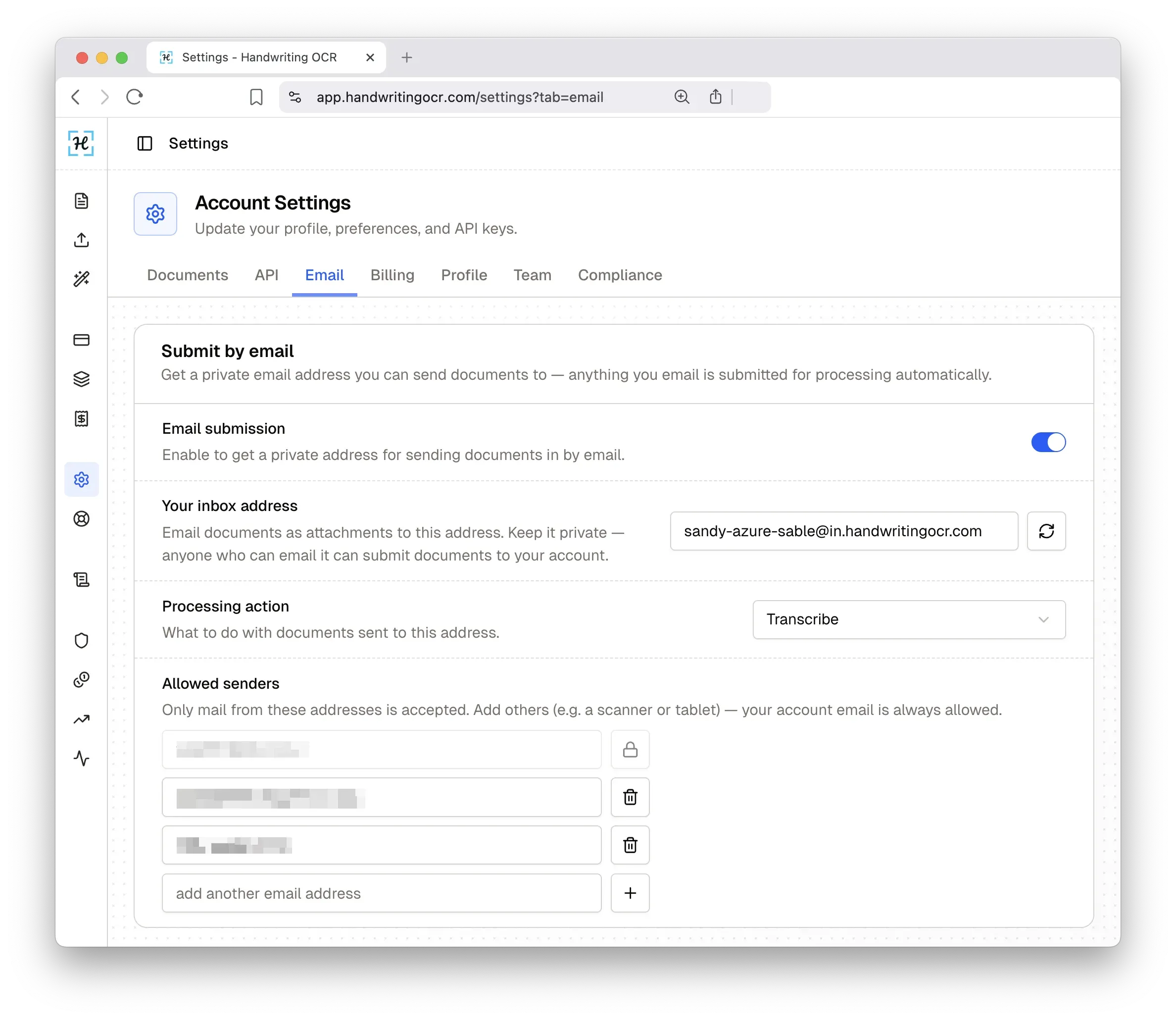
It is the same one-credit-per-page cost as any upload, and free-trial credits work too, so you can test it on your own worst handwriting before committing to anything. (Results appear in your dashboard rather than as an email reply.)
For automated or high-volume work, the same jobs can go through the API on any plan.
When to use which
| You have… | Best tool |
|---|---|
| A page of neat notes you wrote in OneNote | OneNote Ink to Text |
| Cursive or messy handwriting | Handwriting OCR |
| A photo or scan of a paper document | Handwriting OCR |
| A whole notebook or many pages | Handwriting OCR (email the PDF) |
| A quick word or two to digitise | OneNote Ink to Text |
OneNote is a fine first stop for tidy, self-written notes. When the writing gets harder or the pile gets bigger, try Handwriting OCR free and email your first document straight in.
Frequently asked questions
Does OneNote convert handwriting to text?
Yes. OneNote's Ink to Text feature converts ink you have written inside the app. You select the handwriting with the Lasso Select tool on the Draw tab, then choose Ink to Text. It works best on clear, printed-style handwriting. It does not run reliable OCR on a photo of a handwritten page you took with your camera.
Why won't OneNote convert my handwritten photo or scan?
Ink to Text only works on live ink drawn in OneNote, not on an imported photo of handwriting on paper. For a photo, scan, or PDF of handwritten pages, use a dedicated handwriting OCR service. You can email the PDF straight to Handwriting OCR and the transcription appears in your dashboard in about 15 to 20 seconds.
How accurate is OneNote handwriting recognition?
In our own testing, OneNote does well on neat, block-printed handwriting written one page at a time. Accuracy drops on cursive, mixed print and cursive, hurried notes, and faded ink. When the writing gets harder or the job runs to many pages, a specialist tool trained on real-world handwriting will save you the correction time.
Can I convert a whole handwritten notebook from OneNote at once?
Not with Ink to Text, which converts one selection at a time. To digitise a full notebook, export or print the pages to a single PDF, then send that PDF to Handwriting OCR. It processes multi-page documents in one pass and exports to Word, PDF, plain text, or JSON.