
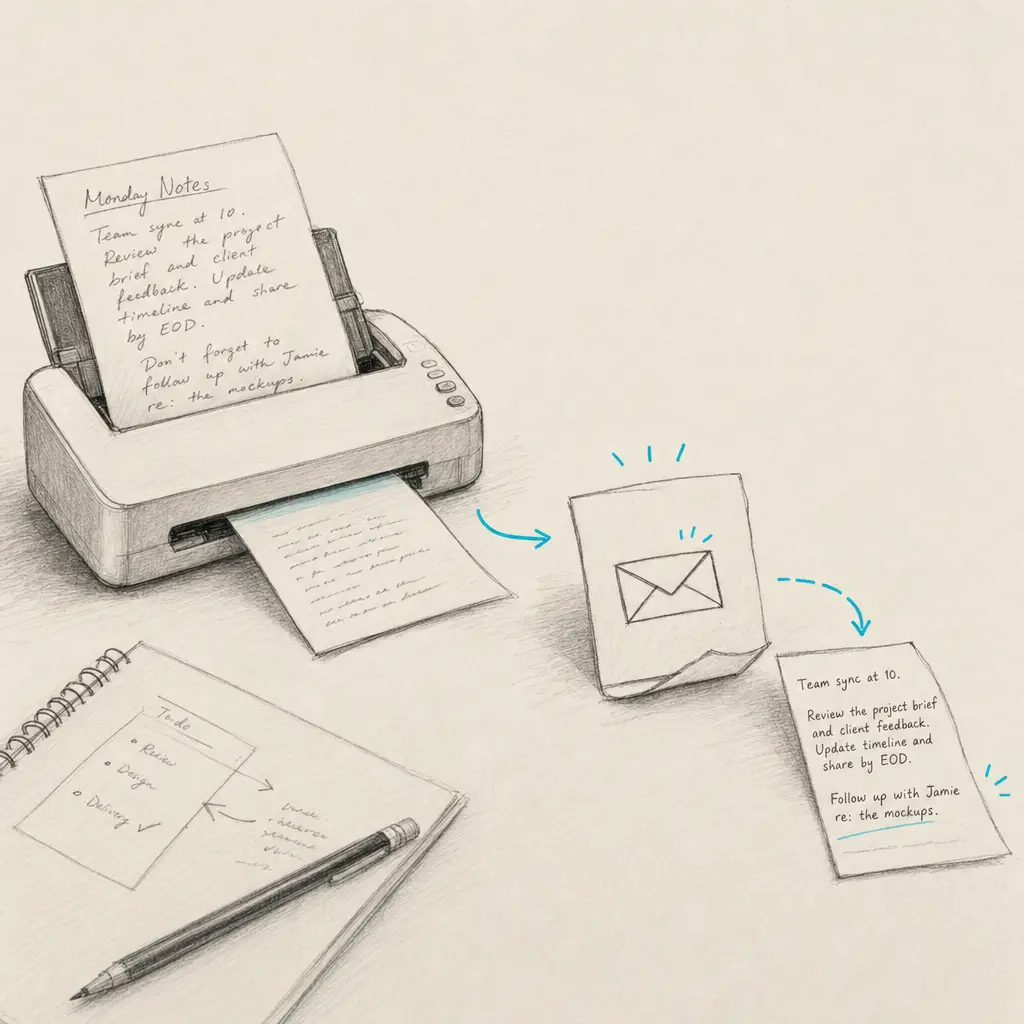
TL;DR: Scan letter-size pages at 300 DPI, not 600, and let the scanner output a plain image rather than running its own text recognition. Then use your scanner’s Scan to Email button: point it at your private Handwriting OCR inbox and the transcription lands in your dashboard with no upload step. Send each job as a single multi-page PDF so it arrives as one document.
If you scan handwritten documents, the slowest part is rarely the scanning. It is the shuffle afterwards: save the file, find it on a computer, open a browser, upload it. There is a faster way. Most scanners can email a scan, so you can send it straight to Handwriting OCR and get accurate text back in your dashboard, with no upload step in between.
Below is how to set that up, the one setting to get right so documents stay together, and the scan settings that genuinely affect how accurately your handwriting comes out.
The fastest route: email the scan straight in
Office scanners and multifunction printers almost all have a Scan to Email button. Once Handwriting OCR has its own inbox address, that button becomes a one-press way to turn a stack of paper into text.
- Turn on email submission. In your Handwriting OCR settings, open the Email tab and enable Email submission. You’ll get a private inbox address, like
smokey-amber-falcon@in.handwritingocr.com. - Allow your scanner as a sender. Add the address your scanner sends from to the Allowed senders list. Office scanners send through a configured email account, so check the scanner’s email settings for that From address, or send one test scan and read the From line. Only senders on this list are accepted.
- Scan to your inbox address. On the scanner, choose Scan to Email and enter your inbox address as the destination (most scanners let you save it as a one-touch contact).
- Collect the text in your dashboard. The scan appears in your documents dashboard with an Email badge, usually within 15 to 20 seconds. Download it as TXT, DOCX, PDF, or JSON.
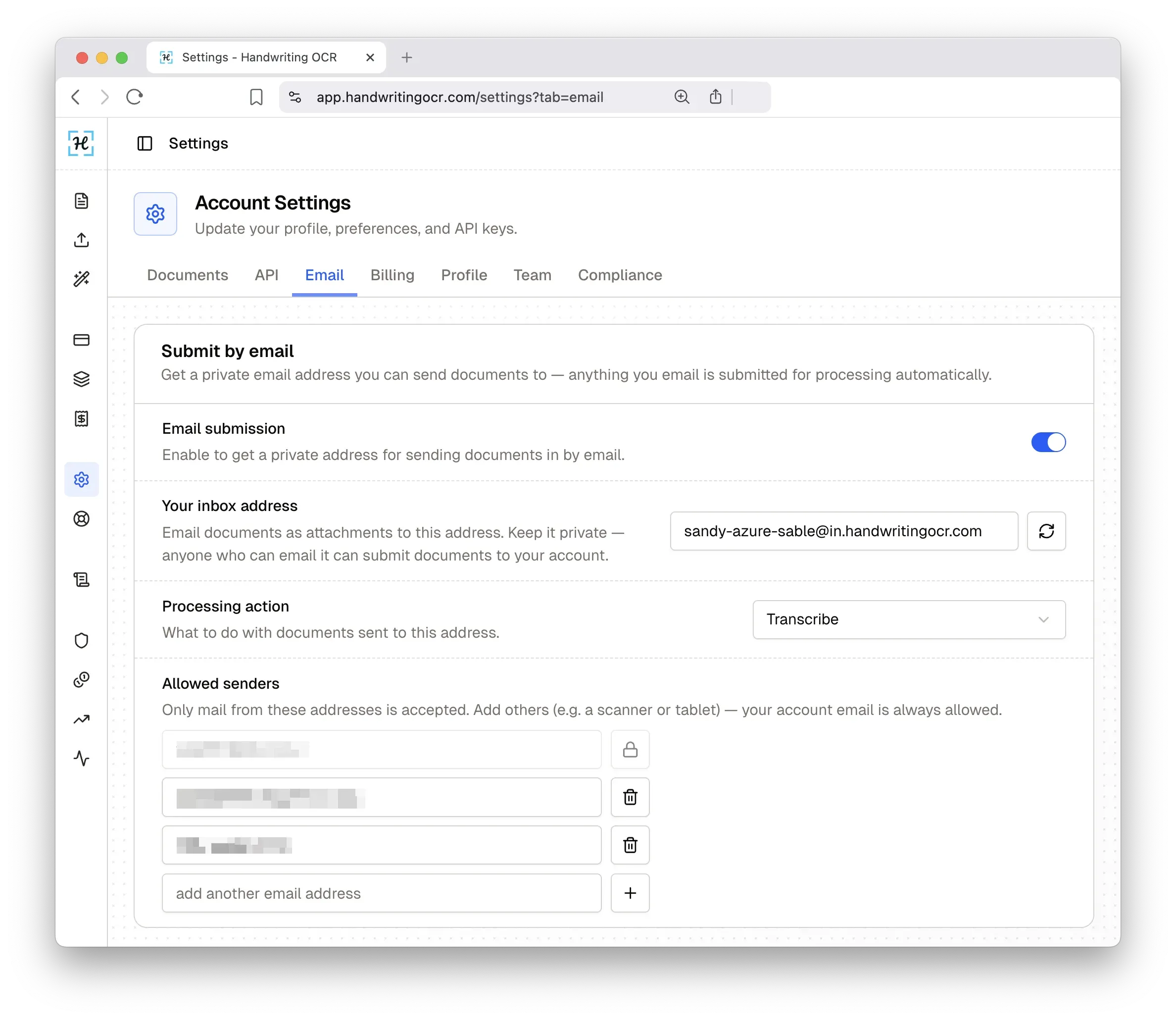
Send the whole job as one PDF. If your scanner lets you choose the output, set it to a single multi-page PDF for the entire batch rather than a separate file per page. Each document then arrives as one transcription in your dashboard, instead of dozens of one-page jobs you have to stitch back together afterwards. Pages are still billed the same, at 1 credit per page, and free-trial credits work too.
One practical limit: email submissions are capped at 20 MB per message, so split a big archive into a few PDFs rather than one enormous file (or upload large files directly in the dashboard, which allows up to 100 MB).
Not just text: scan straight to structured data
Email submission isn’t only for transcription. In the Email settings you choose what happens to every document that arrives, so a scanner can feed a finished workflow rather than just produce a text file:
- Transcribe (the default) returns the full text.
- Tables pulls tabular data straight into a spreadsheet (XLSX).
- A custom extractor reads the specific fields you define on a form and returns them as structured data, ready for a spreadsheet or your own systems.
For an office, that’s the difference between a pile of scanned forms and a clean dataset. Point a scanner at an inbox set to your extractor, and every batch comes back as structured rows with no data entry in between. It’s the same workflow behind our invoice and form processing and handwritten tables to Excel. Tables extraction and custom extractors are available on the Pro and Business plans.
No scan-to-email? Upload the file instead
If your scanner can’t email, or you’re scanning with a flatbed and desktop software, you get the same result by saving the scan as a PDF or image and uploading it in your dashboard. Drag in the file, get accurate text back. The email route just removes that step when the hardware supports it.
Scan settings that actually affect accuracy
The quality of the scan sets the ceiling on the transcription. A few settings matter far more than the rest:
Resolution. More DPI is not automatically better, and this is where most people waste the most time. We render every page at up to 2000 pixels on its long edge before recognition runs. Detail beyond that is discarded, so the useful question is not “how high can I go” but “what DPI lands this page near 2000 pixels”.
For a letter-size page that is lower than people expect. An 11-inch page needs roughly 180 DPI to reach 2000 pixels, so 300 DPI is already comfortable headroom and 600 DPI produces a file around four times larger, takes several times longer to scan, and then gets scaled back down to the same image we would have got at 300.
Smaller originals are the opposite case. A 3 × 5 index card at 300 DPI is only 1500 pixels on its long edge, so the handwriting really is short of detail and a higher setting genuinely helps.
The rule: divide 2000 by the long edge of the original in inches, then round up for headroom.
| Original size | Scan at |
|---|---|
| Letter (8.5 × 11 in) or A4 | 300 DPI |
| Half-page, A5, or a 5 × 7 card | 300 to 400 DPI |
| 3 × 5 or 4 × 6 index card | 400 DPI |
| Slips, receipts, or notes under 3.5 in | 600 DPI |
| Stamp-sized annotations under 2 in | 1200 DPI |
In practice 600 DPI only earns its time on originals smaller than about 3.5 inches on the long edge, because that is the point where 600 DPI is what it takes to reach 2000 pixels. Anything page-sized is comfortably served by 300.
Faded pencil and cursive do not change these numbers. Contrast and stroke clarity are what make those documents hard, and no amount of extra DPI adds contrast that was not on the paper. Grayscale capture helps there; resolution does not.
Color mode. Scan in grayscale or color, not pure black and white. Binary (1-bit) scanning drops the subtle ink transitions in handwriting and makes letters look jagged, which costs accuracy. Grayscale is ideal for pencil or faded ink.
Keep it flat and straight. Flatten curled pages and remove staples or clips so the whole page sits flush. A flatbed avoids the shadows and angle distortion that phone photos introduce.
Clean the glass. Smudges and dust on a flatbed appear in every scan and can be misread as marks. A quick wipe pays off across a whole batch.
Do you need a faster scanner?
Probably not, and this is worth checking before spending anything. When a flatbed crawls on handwritten pages, it is almost always one of two settings rather than the hardware:
- Resolution overshoot. Covered above. Dropping a letter-size page from 600 to 300 DPI cuts the scan time substantially and changes nothing about the transcription you get back, because both end up as the same 2000-pixel render.
- The scanner doing its own text recognition. Most multifunction printers and desktop scanner apps offer a mode that runs recognition on the device and builds the text into the output file. That step, not the sensor, is usually what makes each page feel slow. Switch the output to a plain image PDF or JPEG and the scanner goes back to doing the one thing it is fast at: capturing the page.
Do both and a scanner that felt unusably slow at 600 DPI with recognition enabled generally becomes quick enough that the hardware stops being the constraint. If you are loading fragile pages onto the glass one at a time anyway, the limit is how fast you can place and turn paper, not how fast the sensor reads it.
Is there a scanner with AI built in?
Not in any meaningful sense, and it is worth knowing why so you don’t go looking for one.
Recognition bundled into scanner software and firmware is traditional OCR: it matches shapes against templates of printed characters. That works well on typed pages and poorly on handwriting, where no two letters are formed identically. It is the reason a scanner can produce a near-perfect transcription of a typed letter and near-nonsense from the handwritten note beside it, at the same resolution on the same glass.
Handwriting is handled by AI models that are far too large to sit inside a scanner, so the practical split is to let each side do what it’s good at. The scanner’s job is a clean, flat, well-lit image. Recognition happens afterwards in software, which is also why it improves over time without you buying new hardware.
Scanning from a phone or tablet
No scanner? A phone works for smaller jobs. Use your device’s built-in document scan (Notes on iPhone/iPad, or Google Drive’s scan on Android) to capture a clean PDF rather than a casual photo, then email it to your inbox address or upload it. For step-by-step phone capture, see our Android guide, and if you take notes on an e-ink tablet, the handwriting-to-text guides cover emailing notebooks from reMarkable, Supernote, Boox, and Kindle Scribe.
An honest note on accuracy
No OCR is perfect, and we don’t claim 100%. Very faded ink, signatures, and rare scripts are genuinely hard for any tool. But a clean scan at a sensible resolution, sent straight from the scanner, is the strongest possible start, and for everyday cursive and messy handwriting this is exactly the job our AI is built for.
See it on your own documents
You get 5 free credits to start, enough to run a real scan or two through and judge the result on your own handwriting before deciding anything.
Try Handwriting OCR free and scan your first document straight in.
Frequently asked questions
Can I scan straight to OCR by email?
Yes. Most office scanners and multifunction printers have a Scan to Email option. Point it at your private Handwriting OCR inbox address, add the address your scanner sends from to your allow-list, and the transcription appears in your documents dashboard, usually within 15 to 20 seconds of the scan arriving.
Should the scanner send one PDF or one file per page?
Send the whole job as a single multi-page PDF if your scanner offers it. That way each document arrives as one transcription in your dashboard instead of dozens of separate one-page jobs. Pages are still billed the same, at 1 credit per page.
What is the ideal DPI setting for scanning handwriting for OCR?
For a letter-size or A4 page, 300 DPI. We render each page at up to 2000 pixels on its long edge before recognition, and an 11-inch page reaches that at roughly 180 DPI, so 300 DPI is already comfortable headroom and 600 DPI just makes the file bigger and the scan slower for the same result. Small originals are the exception: a 3 by 5 index card needs 600 DPI to carry the same amount of detail.
Do I need a faster scanner for handwriting OCR?
Usually not. Slow per-page scanning is nearly always one of two settings rather than the hardware: resolution set higher than the page needs, or the scanner running its own text recognition on the device. Drop a letter-size page to 300 DPI and set the output to a plain image PDF, and most flatbeds become quick enough that the scanner is no longer the bottleneck.
Are there scanners with AI handwriting recognition built in?
Not in any meaningful sense. Recognition bundled into scanner software and firmware is traditional OCR, which matches shapes against templates of printed characters and performs poorly on handwriting. The AI models that read handwriting well are far too large to run inside a scanner, so the practical split is to let the scanner capture a clean image and handle recognition in software afterwards.
Should I scan handwriting in color, grayscale, or black and white?
Grayscale or color scans give the best results. Pure black and white (1-bit) scanning often loses the subtle ink transitions in handwriting and makes letters look jagged, which lowers accuracy.