
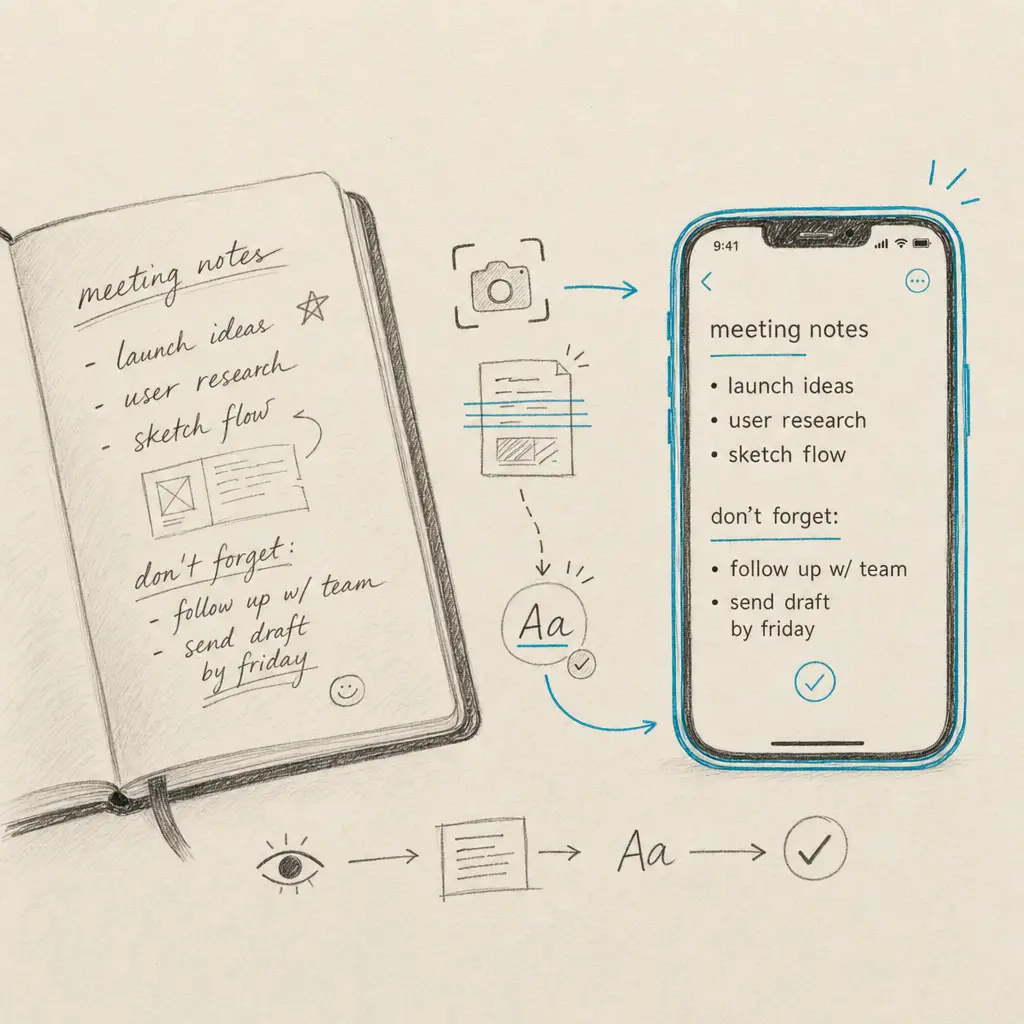
Your iPhone can pull text out of a handwritten note, but it is worth being clear about what it does well and where it runs out of road. The built-in tools handle a clear, block-printed page one at a time. Give them cursive, hurried notes, faded ink, or a stack of pages, and the results get frustrating fast.
This guide shows the native iPhone methods and their real limits, then the faster, more accurate route we see people take when they have real handwriting to digitise.
Quick answer
- Live Text is the iPhone’s native option: photograph a note, tap the Live Text icon, copy the text. Good on clear block printing, one page at a time.
- Apple Notes Scribble needs an Apple Pencil, so it is an iPad feature, not an iPhone one.
- For cursive, messy, faded, or multi-page handwriting, email your PDF to Handwriting OCR and the transcription lands in your dashboard in about 15 to 20 seconds.
Using Live Text on iPhone
Live Text is built into iOS and works on photos of handwriting.
- Take a clear, well-lit photo of your handwritten page, or open an existing one in Photos.
- Tap the Live Text icon (the lines-in-a-box icon) in the bottom corner.
- Press and drag to select the recognised text.
- Tap Copy, then paste it into Notes, Mail, Word, or anywhere else.
This is genuinely handy for a shopping list or a tidy paragraph of printing. But Live Text was built mainly for printed text. On real handwriting its accuracy falls away quickly, and it has no concept of a multi-page document.
Where the iPhone’s built-in tools run out
We process thousands of real handwritten documents every week, so we see exactly where the native tools stop being enough. In practice:
- Live Text does well on neat, block-printed handwriting in a single, well-lit photo.
- It struggles with cursive, joined or mixed writing, cramped or hurried notes, and faded or low-contrast ink.
- It has no multi-page workflow, so you are copying and pasting one photo at a time.
- Scribble doesn’t apply, because iPhone has no Apple Pencil support.
If your handwriting is clean and you only have a page, the built-in tools are fine. The moment you have more than that, and the accuracy isn’t good enough, it is worth using a tool built for the job.
The faster route: email your PDF to Handwriting OCR
Handwriting OCR is built specifically for real-world handwriting, cursive included, and it is materially more accurate on handwriting than Apple Live Text. It reads over 300 languages and handles whole multi-page documents in one pass.
You can do it all from your iPhone without installing anything:
- Scan your pages into one PDF. Open the Notes app, tap the camera icon, choose Scan Documents, capture each page, and save. (Any scanner app that makes a PDF works too.)
- Email the PDF to your private Handwriting OCR inbox address as an attachment, straight from the Mail app.
- Open your dashboard. The finished transcription appears there with an Email badge, usually within 15 to 20 seconds.
- Export to Word (DOCX), PDF, plain text, or JSON.
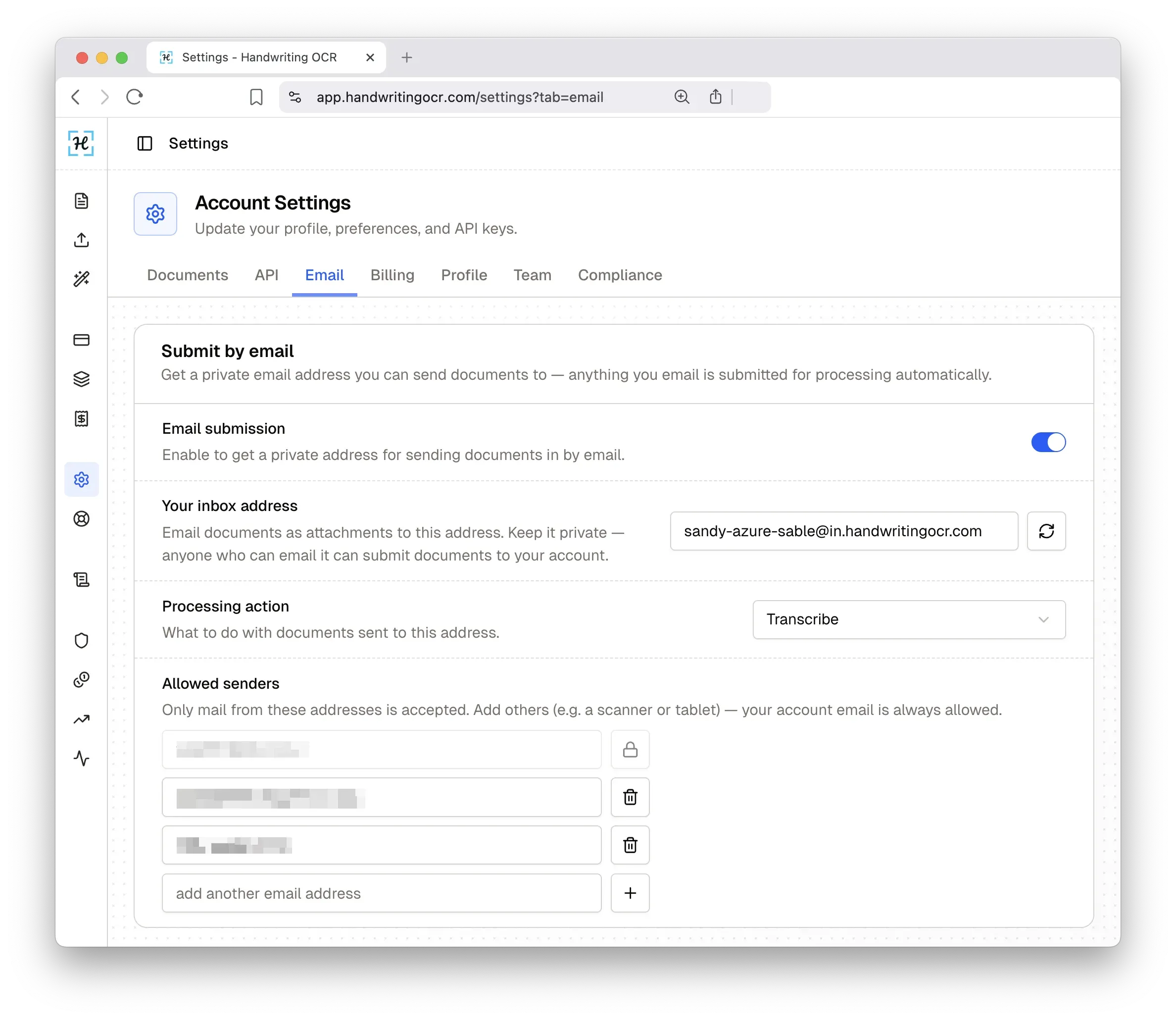
Email submission is switched on in your settings, where you get a private inbox address of your own. It costs the same one credit per page as any upload, and free-trial credits work too, so you can test it on your own worst handwriting first. (The result appears in your dashboard rather than as an email reply.)
Prefer to upload directly? You can also open Handwriting OCR in Safari and add the photo or PDF from your iPhone.
When to use which
| You have… | Best tool |
|---|---|
| A tidy, block-printed page | iPhone Live Text |
| Cursive or messy handwriting | Handwriting OCR |
| Several pages to digitise | Handwriting OCR (email the PDF) |
| Faded or low-contrast ink | Handwriting OCR |
| A quick line or two to copy | iPhone Live Text |
For a clean single page, your iPhone already has you covered. When the handwriting gets harder or the pile gets bigger, try Handwriting OCR free and email your first document straight in.
If you also work across Apple devices, see our guides for iPad and Mac.
Frequently asked questions
Can iPhone convert handwriting to text without an app?
Yes, using Live Text. Open a photo of your handwritten note in the Photos app, tap the Live Text icon in the corner, then select and copy the text. Live Text does well on clear, block-printed handwriting but is unreliable on cursive, hurried, or faded writing.
Does Apple Notes Scribble work on iPhone?
Scribble converts handwriting into text as you write, but it needs an Apple Pencil, which iPhone does not support. Scribble is an iPad feature. On an iPhone your practical native option for existing handwritten pages is Live Text on a photo.
What is the most accurate way to convert handwriting on iPhone?
For anything beyond a clean printed page, use a dedicated handwriting OCR service. Handwriting OCR is materially more accurate on real handwriting than Live Text, reads over 300 languages, and handles cursive and multi-page documents. You can email a PDF straight to it from your iPhone.
How do I convert several pages of handwriting on iPhone at once?
Scan the pages into one PDF using the Notes app document scanner, then email that PDF to your private Handwriting OCR inbox. The whole document is transcribed in one pass and appears in your dashboard in about 15 to 20 seconds, ready to export to Word, PDF, text, or JSON.